The same request, transformed with a guide
Both use the same request: "Create a running condition summary screen." Drag the center divider to compare.
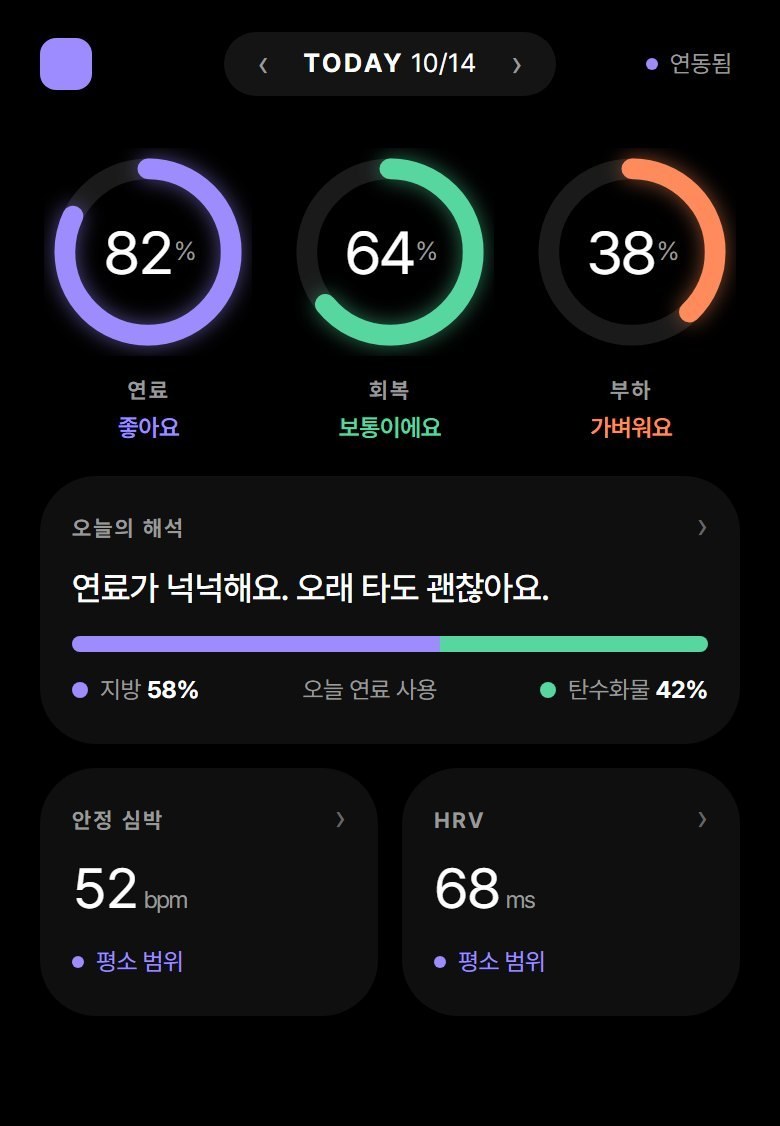
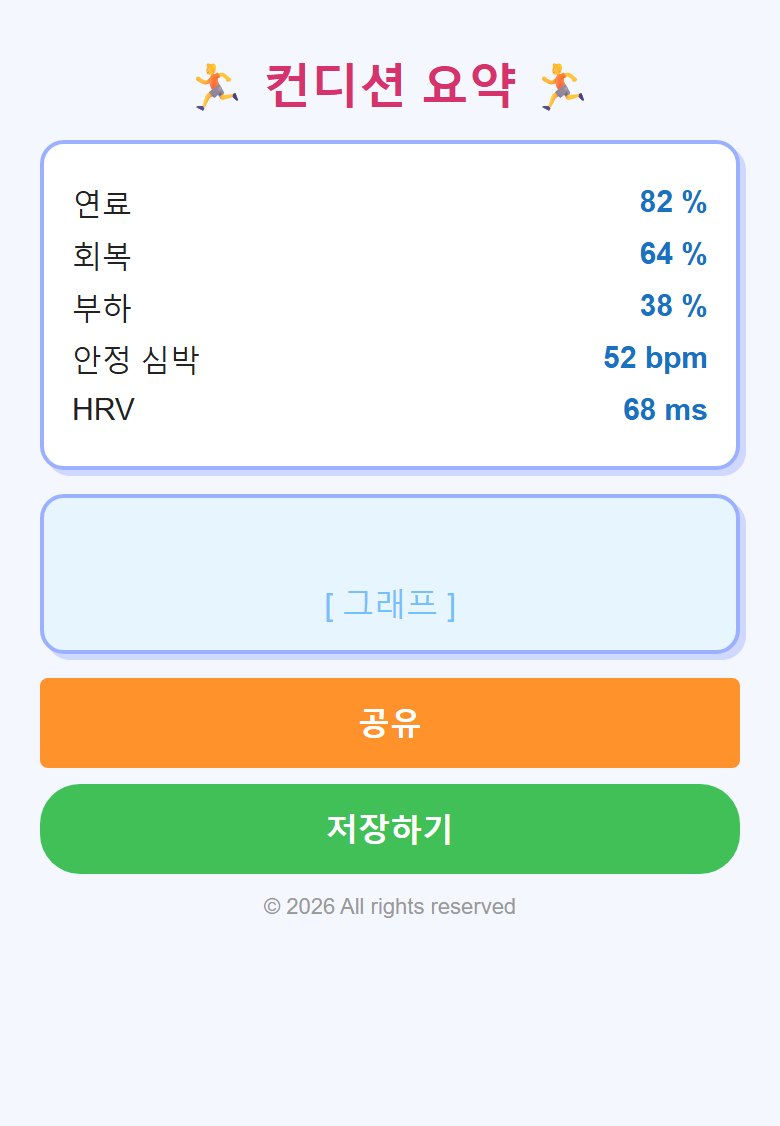 Without guideWith Carvit guide
An example of a mock running app screen made from the same request. The size of the numbers, colors, and button positions all change.
Shown with the Korean interface.
If a guide is already set up, a simple prompt like "Create a search screen" works immediately.
Shown with the Korean interface.
Getting started
Connect, upload your guide, and prompt as usual. Logging in creates your workspace and provides your install code.
- Connect. Choose your tool on the Connect screen, click [Copy], and paste it into your tool. Once connected, status appears on the same screen.
- Upload a guide. Pass your DESIGN.md, design doc, screen capture, or website URL to your AI tool and say "Apply it to Carvit UX." If you do not have a document, choose from the starter templates below.
- Prompt as usual. Describe the screen you want to build, and the AI will find the relevant section (guide item) and build according to it. If you are not an Editor, the AI submits guide edits as suggestions, which take effect only after an Editor approves.
Supported tools
Click a tool to open the connection instructions. If login is required, log in first.
For teams, invite teammates and assign roles (Owner, Editor, Member) to those who can edit the guide.
Guides are followed every time a screen is built
Everyone starts from the exact same standard
Right before building a screen, Carvit finds the relevant guide section. Whether team members change or AI builds instead of a human, everything starts from the same standard.
Real values instead of vague principles
Guides specify colors, spacing, radius, and microcopy as exact values, leaving little room for misinterpretation. For unguided decisions, the AI is instructed to ask before adding a new item rather than inventing one.
Automate manual visual reviews
After building, code changes are compared line by line against the guide to flag unregistered colors or spacing. Rechecking confirms zero unguided values remain.
Six starter templates
Start with the closest fit and adapt it to your company. You can always revert to a previous version.
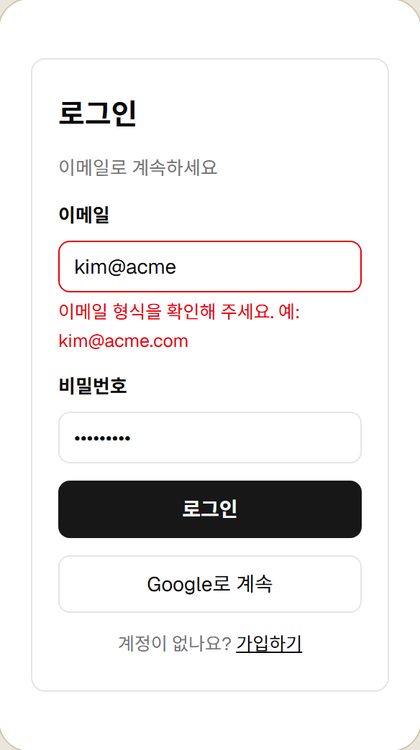 shadcn Default Clean default
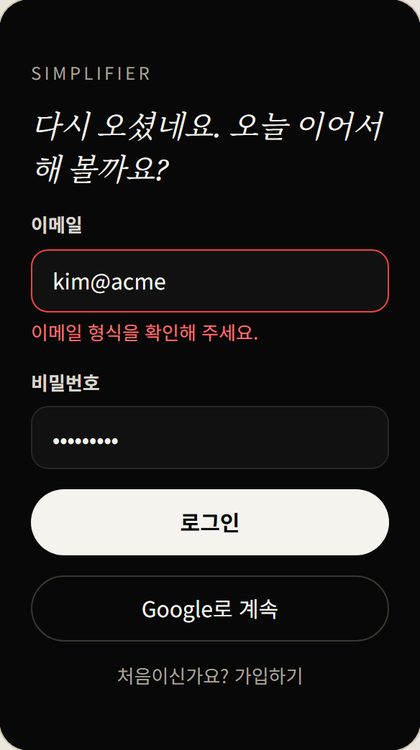 Brand Site Content and brand
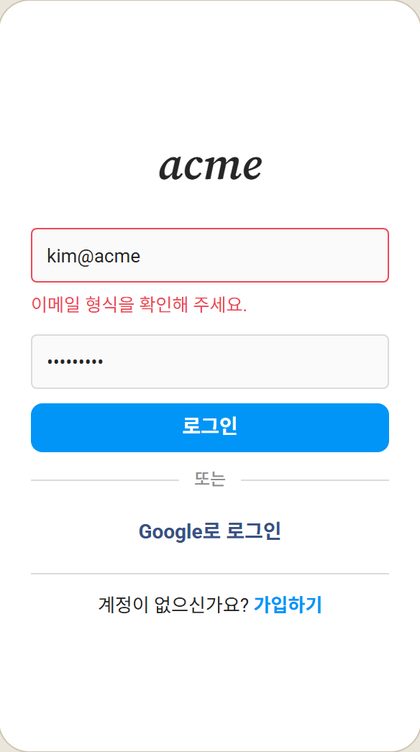 Instagram Style Photos and feed
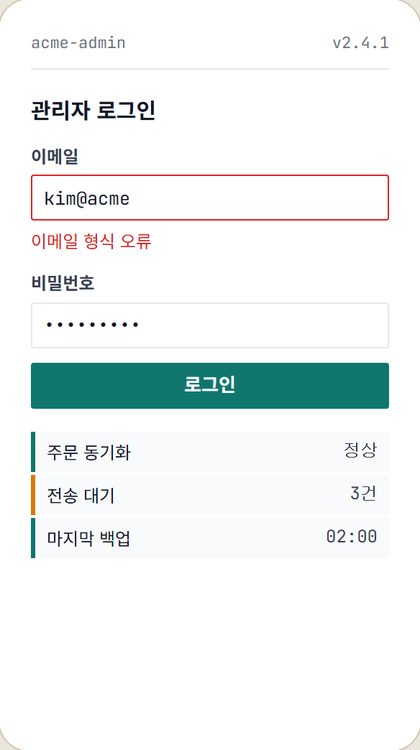 Grid Console Tables and admin screens
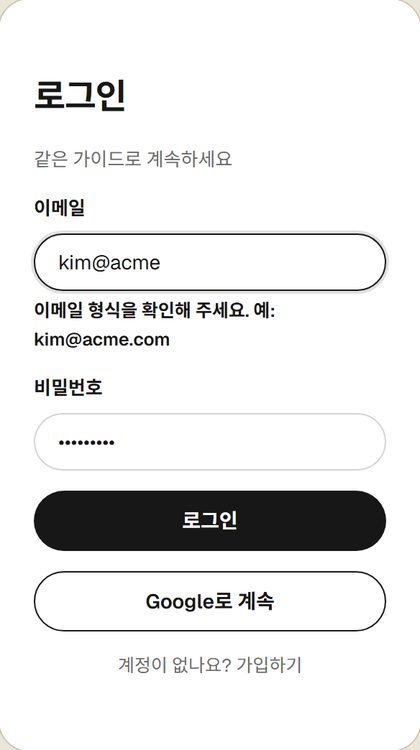 Carvit Clean monochrome
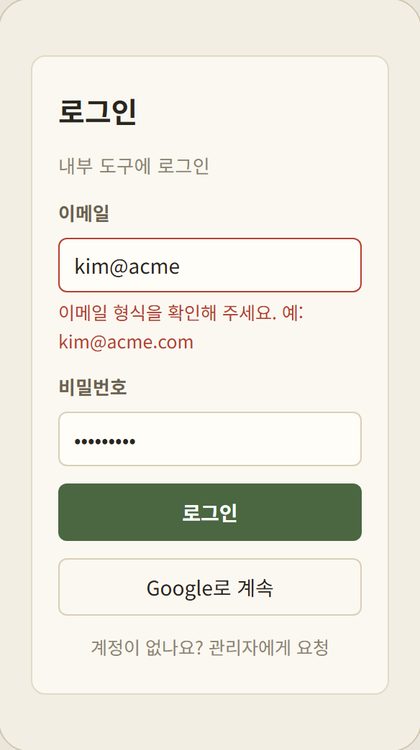 Studio Cream background, internal tools and reports
We use it first
Carvit is used first and foremost to build Carvit's own screens. Below are actual logs.
Proof of guide compliance is recorded
Each referenced item records a one-line note, viewable by date on the dashboard. Lookups count how often the AI searched the guide, while citations count how often it cited a reference. Founders can verify that standards are maintained, and builders save time explaining design decisions.
- 356Internal guide lookups (10/1~10/14)
- 139Guide citations (10/1~10/14)
Internal logs as of 2026-10-14, not customer usage metrics.
- "Set the install code confirmation dialog title to a single question line, with buttons ordered [Cancel][Get Install Code]."Dev Agent · 1.38 Confirmation Dialog · 10/2
- "Made the input field border permanently visible and placed hint text below the field."Dev Agent · 1.35 Input Fields · 10/2
- "Set error text directly below the field in a single sentence explaining cause and action, using action names for buttons."Product Agent · 1.7 Copy · 10/2
Actual citation notes logged in Carvit. Customer logs are not visible.
Capabilities
Key features. Names in parentheses indicate tools invoked by AI tools.
- Find relevant guide sections (
lookup): Finds and returns matching sections along with their content. - Read specific section (
get_section): Reads a single section by its number. - View full table of contents (
list_sections): Displays the complete section list when search returns no results. - Record reference (
cite): Logs that a task was modified based on a section, along with a one-line reason. - View usage stats (
usage): Counts lookups (searches), citations (references logged), and failed searches by date and person.
FAQ
Common questions from first-time users.
What if the section I want does not appear in search?
Search looks for exact words in section titles and text rather than intent. If no matching section is found, empty results are returned, and the AI opens the full list to search again. Try rephrasing your prompt with words used in section titles.
How do I see what I can do after connecting?
Tell your AI tool "Show Carvit help" or run /carvit:help in Claude Code. Creating, updating, and viewing UX Guides, building services with MCP, inviting teammates, and sending feedback will be listed by number.
How do I edit the guide later, or revert an unwanted edit?
To edit: Describe the change, such as "Change the primary button color to #0F766E." The AI will find the relevant section, preview the change, and apply it when you say "Apply it." If edited by mistake, say "Revert to previous version." You can always revert to a previous version.
Only Editors (assigned by the Owner) can modify guides directly. If you are not an Editor, the AI submits changes as suggestions, and the guide remains unchanged until an Editor approves them.
For initial setup, see "Getting started" above.
Where do I select Carvit UX templates?
In two places. After logging in, select a starter template under the top "UX Guide" tab, or ask your AI tool to "Create from a starter template" to view available options.
How do I send feedback to the Carvit team?
Just tell your AI tool to "Send feedback to the Carvit team." Pain points, requested features, or praise are all welcome. The tool will organize your comments and deliver them to the Carvit team using the feedback tool.
If you would like a response, please include your contact information (such as email) as well. If omitted, your feedback is delivered, but we cannot reply.
Do not include install codes, passwords, customer names, or private business details. Please describe issues in general terms.